

To use Google Analytics, you create a free Google Analytics 4 (GA4) property, add the Google tag to every page of your site, mark the actions that matter (sign-ups, purchases, demo requests) as key events, and then read a handful of reports: Traffic acquisition for where visitors come from, Pages and screens for what they read, and Landing page for which pages start the visits that convert. Everything else is refinement.
This guide walks through setup, the settings most people skip, the reports worth opening, what each metric means, and a 15-minute weekly routine. It's written for GA4 as it looks in 2026; if a tutorial mentions "Behavior Flow", "goals" or "unique pageviews", it was written for Universal Analytics, which Google shut down in July 2024.
Key takeaways
- GA4 is free and runs on 46.8% of all websites, which is 82.1% of sites that use any traffic analysis tool (W3Techs, October 2026).
- Setup is account, then property, then a web data stream, then the Google tag on every page (directly, through Tag Manager, or with a CMS integration).
- Do three things on day one: set data retention to 14 months, filter out your own visits, and mark your key events.
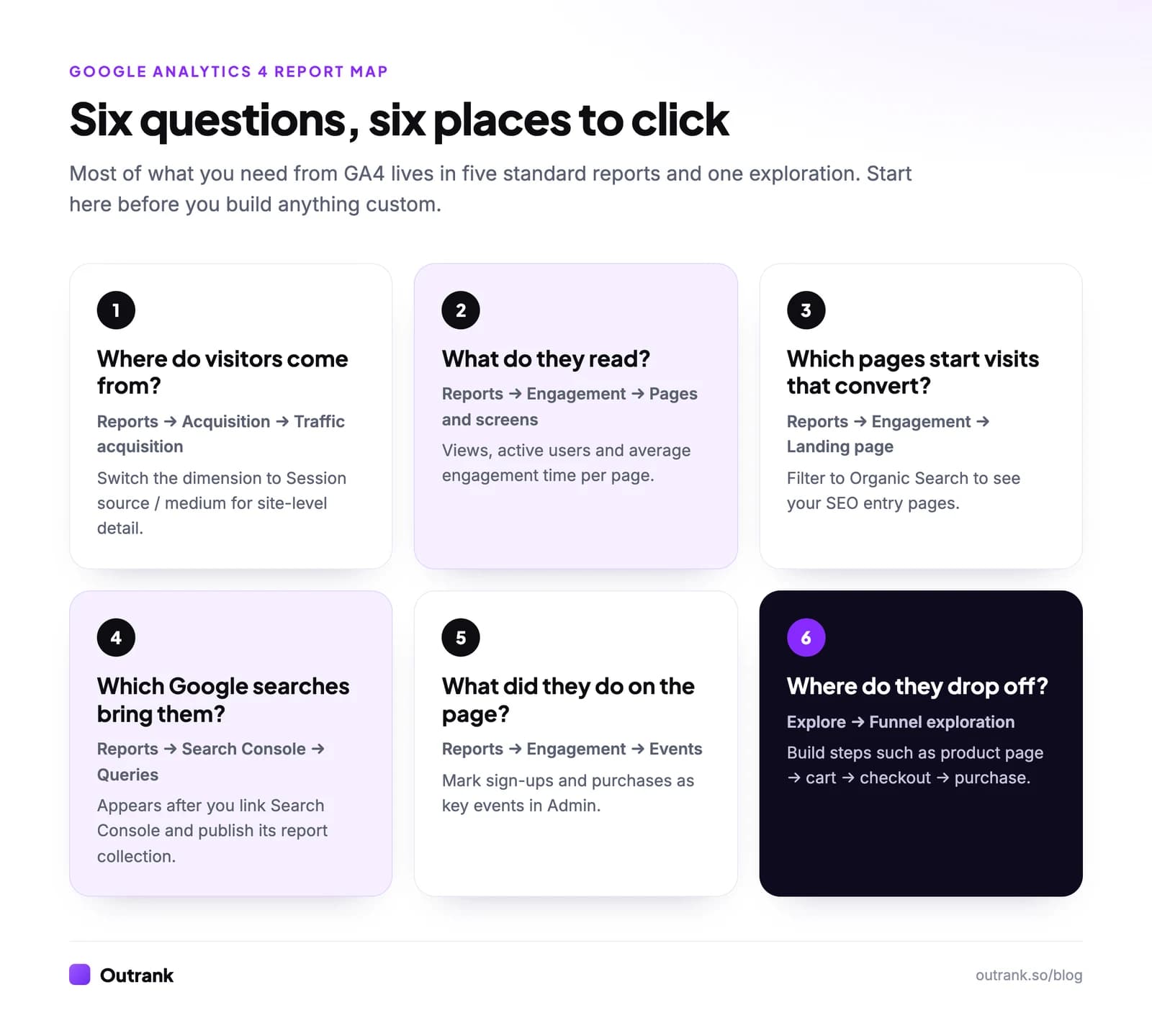
- Six places in GA4 answer most business questions: Traffic acquisition, Pages and screens, Landing page, Events, the Search Console reports and a funnel exploration.
- Engagement rate replaced bounce rate as the main quality metric. A session is engaged if it lasts over 10 seconds, has a key event, or has 2 or more page views.
What Google Analytics 4 is
Google Analytics 4 is Google's free analytics tool: a small script on your site sends events (page views, scrolls, clicks, form submissions, purchases) to Google, and GA4 turns them into reports about your visitors, where they come from and what they do. According to W3Techs, it's used by 46.8% of all websites as of October 2026.
Everything in GA4 is an event. That's the main difference from the old Universal Analytics, which counted sessions and pageviews; it's why GA4's metrics (engagement rate, key events) look unfamiliar if you learned analytics before 2023. It's also why the standard version is free with no traffic fee: you only pay if you buy the enterprise edition, GA4 360.
Step 1: Set up GA4 and install the tag
- 1
Create an account and a property
Go to analytics.google.com, sign in with a Google account, and follow the setup (or Admin → Create → Property if you already have an account). Enter your site name, reporting time zone and currency. - 2
Add a web data stream
Choose Web, enter your site's URL and a stream name. Leave Enhanced measurement switched on so GA4 tracks scrolls, outbound clicks, site search, video plays, file downloads and form interactions without extra code. - 3
Install the Google tag
Copy the Measurement ID (it starts with G-) from the stream details. Paste it into your CMS integration or into a Google tag in Google Tag Manager, or click View tag instructions → Install manually and paste the gtag.js snippet into the head of every page. - 4
Check that data arrives
Open Reports → Realtime, then visit your site from your phone. Your visit should appear within a few minutes. Standard reports take longer; Google says processing can take 24 to 48 hours.
Use one installation method only. Adding the tag through a plugin and pasting the snippet manually is the most common setup mistake, and it double-counts every page view.
What GA4 tracks automatically
With enhanced measurement on, you get these events with no extra work:
| Event | When it fires |
|---|---|
page_view | A page loads, or the URL changes in a single-page app |
scroll | The first time a visitor reaches 90% of the page depth |
click | A click on a link to another domain (an outbound click) |
view_search_results | Your site search results page loads |
video_start, video_progress, video_complete | Embedded YouTube videos start, pass 10/25/50/75%, and end |
file_download | A click on a link to a document, archive, video or audio file |
form_start, form_submit | A visitor first interacts with a form, and submits it |
Step 2: Configure the settings that matter
GA4 works out of the box, but its defaults leave gaps that are painful to fix later because most changes aren't retroactive. Do these in the first week:
Interactive checklist
GA4 setup checklist
0/7
Data quality
0/3Measurement
0/3Privacy
0/1Your progress is saved in this browser, so you can come back to it later.
Two notes on these:
- Internal traffic filters can take 24 to 36 hours to take effect, and an Active filter permanently excludes data. Leave a new filter in Testing for a day and check it in an exploration before activating it.
- Key events are what Google called conversions until 2024. The concept is the same: the events you care about most. In Google Ads, "conversion" is still the word for the ones you import there.
Step 3: Read the reports that answer real questions
Ignore the dozens of reports in the left menu for now. Six places answer most of what a business needs to know:
Where visitors come from: Traffic acquisition
Reports → Acquisition → Traffic acquisition groups sessions by channel (Organic Search, Direct, Referral, Paid Search, Organic Social, Email). Change the table's dimension to Session source / medium to see individual sources, like google / organic or newsletter / email. The referral rows are also how you see which backlinks send traffic.
User acquisition, next to it, answers a different question: how new users first found you. Use Traffic acquisition for "which channels drive visits", User acquisition for "which channels win new people".
What visitors read: Pages and screens
Reports → Engagement → Pages and screens lists your pages by views, active users and average engagement time. Sort by views to find your most visited pages; switch the dimension to Page path and screen class if titles are duplicated across pages.
Which pages start visits: Landing page
Reports → Engagement → Landing page shows the first page of each session. This is the most useful report for SEO: add a filter for Session default channel group = Organic Search and you see which pages Google sends people to, how engaged they are, and which ones lead to key events.
What people searched on Google: Search Console reports
Once Search Console is linked and its collection published, GA4 adds two reports: Queries (the Google searches that showed your site, with clicks, impressions, CTR and average position) and Google organic search traffic (landing pages with both Search Console and GA4 metrics). The second one is where you spot pages with plenty of impressions but few clicks. For ranking work beyond that, see how to track your Google rankings for free.
What visitors did: Events
Reports → Engagement → Events counts every event. It's where you confirm a new event is firing, and where you find the event names to mark as key events.
Where people drop off: Funnel exploration
Explore → Funnel exploration lets you define steps (for example product page, add to cart, begin checkout, purchase) and see how many visitors fall out at each one. Explorations are the flexible side of GA4: free-form tables, funnels and paths you build yourself. On standard properties, an exploration that scans more than 10 million events is sampled, and it can only look back as far as your data retention setting.
GA4 metrics in one sentence each
| Metric | What it means |
|---|---|
| Active users | People who had an engaged session, or a first visit, in the period; GA4's default "users" number |
| Sessions | Visits; a session ends after 30 minutes of inactivity by default |
| Engaged sessions | Sessions that lasted more than 10 seconds, had a key event, or had 2 or more page views |
| Engagement rate | Engaged sessions divided by sessions |
| Bounce rate | The percentage of sessions that were not engaged; the inverse of engagement rate |
| Average engagement time | How long the page was in the foreground of the visitor's browser |
| Views | Page views (and app screen views) |
| Key events | The number of times your marked key events happened |
| Session key event rate | The percentage of sessions with at least one key event |
GA4's bounce rate isn't the Universal Analytics bounce rate. A visitor who reads one article for two minutes and leaves counts as engaged in GA4, which is a far better reflection of a good blog visit.
A 15-minute weekly routine (for SEO and content)
- Landing page, organic only, last 28 days vs the previous 28. Which entry pages gained or lost sessions? A drop on one page usually means a ranking change; a drop across all pages usually means tracking, seasonality or a Google update.
- Search Console → Google organic search traffic. Find pages with high impressions and a low click-through rate. Those need a better title and meta description before they need more content.
- Traffic acquisition by channel. Check that Organic Search, Referral and Direct look plausible. A sudden jump in Direct often means broken tracking on a campaign or a missing tag, not a burst of brand awareness; our explainer on organic search vs direct traffic covers the usual causes.
- Key events by landing page. Which content brings visitors who sign up or buy? Write more about those topics.
- Write down one action. Rewrite a title, add internal links to a page that's close to page one, or plan the next article.
Once a quarter, step back and run a fuller content performance analysis, or a website traffic analysis if traffic moved sharply.
GA4 shows which topics bring engaged visitors from Google; producing the next twenty pages on those topics is the slow part. Outrank handles that: it finds keywords your site can realistically rank for, writes a long SEO article with images and internal links every day, and publishes it to your CMS. GA4 then tells you which of those articles are earning their keep.
Common GA4 mistakes
- Leaving data retention at 2 months. Explorations can't go further back than the setting, and the change isn't retroactive.
- Installing the tag twice. A plugin plus a manual snippet doubles page views and wrecks engagement rate.
- Counting your own visits. Without an internal traffic filter, your team's visits inflate small sites' numbers.
- Payment providers as referrals. Visitors returning from checkout show up as referral traffic and steal credit from the real source until you list them as unwanted referrals.
- Putting UTM parameters on internal links. UTMs are for links on other sites, emails and ads. On your own pages they start a new attributed session and corrupt your channel data.
- Expecting GA4 to match Search Console. They measure different things: Search Console counts clicks in Google search, GA4 counts sessions its tag recorded. Watch trends in both, not exact matches.
FAQ
Is Google Analytics free to use?
Yes. The standard version of Google Analytics 4 is free for any website or app, with no traffic-based fee. Only the enterprise edition, Google Analytics 360, is paid; its price isn't published and has been reported to start around $50,000 a year.
How do I add Google Analytics to my website?
Create a GA4 property and a web data stream at analytics.google.com, then copy the Measurement ID that starts with G-. Paste it into your CMS's Google Analytics integration or a Google tag in Google Tag Manager, or paste the gtag.js snippet from View tag instructions into the head of every page. Check Reports → Realtime to confirm it works.
How long does it take for data to show up in GA4?
Your own visit should appear in the Realtime report within a few minutes. Standard reports take longer: Google says daily data is typically processed within about 12 hours for standard properties and that processing can take 24 to 48 hours, during which numbers may still change.
What replaced bounce rate in GA4?
Engagement rate is GA4's main quality metric: the percentage of sessions that lasted more than 10 seconds, had a key event, or had 2 or more page views. GA4 still reports bounce rate, but it's now simply the inverse, the percentage of sessions that were not engaged.
What are key events in GA4?
Key events are the events you mark as most important to your business, such as a purchase, a sign-up or a lead form submission. Google called them conversions until 2024. Standard GA4 properties can have up to 30 key events, and you mark them in Admin → Events.
How do I see which pages get the most traffic in GA4?
Open Reports → Engagement → Pages and screens and sort by Views. To see which pages people enter your site on, which matters more for SEO, open Reports → Engagement → Landing page and filter the channel to Organic Search.
How do I see Google search queries in Google Analytics?
Link Search Console in Admin → Product links → Search Console links, then publish the Search Console report collection from the Library. GA4 then shows a Queries report with the Google searches that displayed your site, plus clicks, impressions, click-through rate and average position.
What's the difference between users and sessions in GA4?
A user is a person (more precisely, a browser or device GA4 recognizes), while a session is one visit. One user can have many sessions; by default a session ends after 30 minutes of inactivity. Use users to measure reach and sessions to measure visits and engagement.