

There are three ways to use WordPress with GoDaddy: buy Managed Hosting for WordPress, where WordPress comes pre-installed and GoDaddy runs the updates and backups; install WordPress yourself on GoDaddy Web Hosting (cPanel) with its one-click installer; or keep your domain at GoDaddy and point it at WordPress hosted somewhere else, such as WordPress.com. Most beginners should take the first option. Once it's set up, you sign in from My Products → Managed Hosting for WordPress → Manage All → WP Admin.
Below: how to choose, the exact setup clicks for each route, current GoDaddy prices, how to connect your domain, and the GoDaddy-only rules (blocked plugins, file limits, update timing) that the sales page leaves out.
Key takeaways
- GoDaddy's Managed Hosting for WordPress costs $6.99, $10.99 or $14.99 a month for the first year on an annual term (Basic, Deluxe, Ultimate), against struck-through regular prices of $14.99, $19.99 and $26.99 (GoDaddy pricing page, October 19, 2026).
- Basic has no staging site. Choose Deluxe if you want to test plugin and theme changes before they go live.
- GoDaddy blocks caching plugins (WP Super Cache, W3 Total Cache, WP Fastest Cache) and most backup plugins on Managed WordPress, because caching and 30 days of daily backups are built in.
- GoDaddy rolls out major WordPress releases two to four weeks after the official release, and minor security releases about seven days after.
- GoDaddy's Website Builder is a different product and does not run WordPress. Make sure you buy a WordPress plan.
Pick your setup first
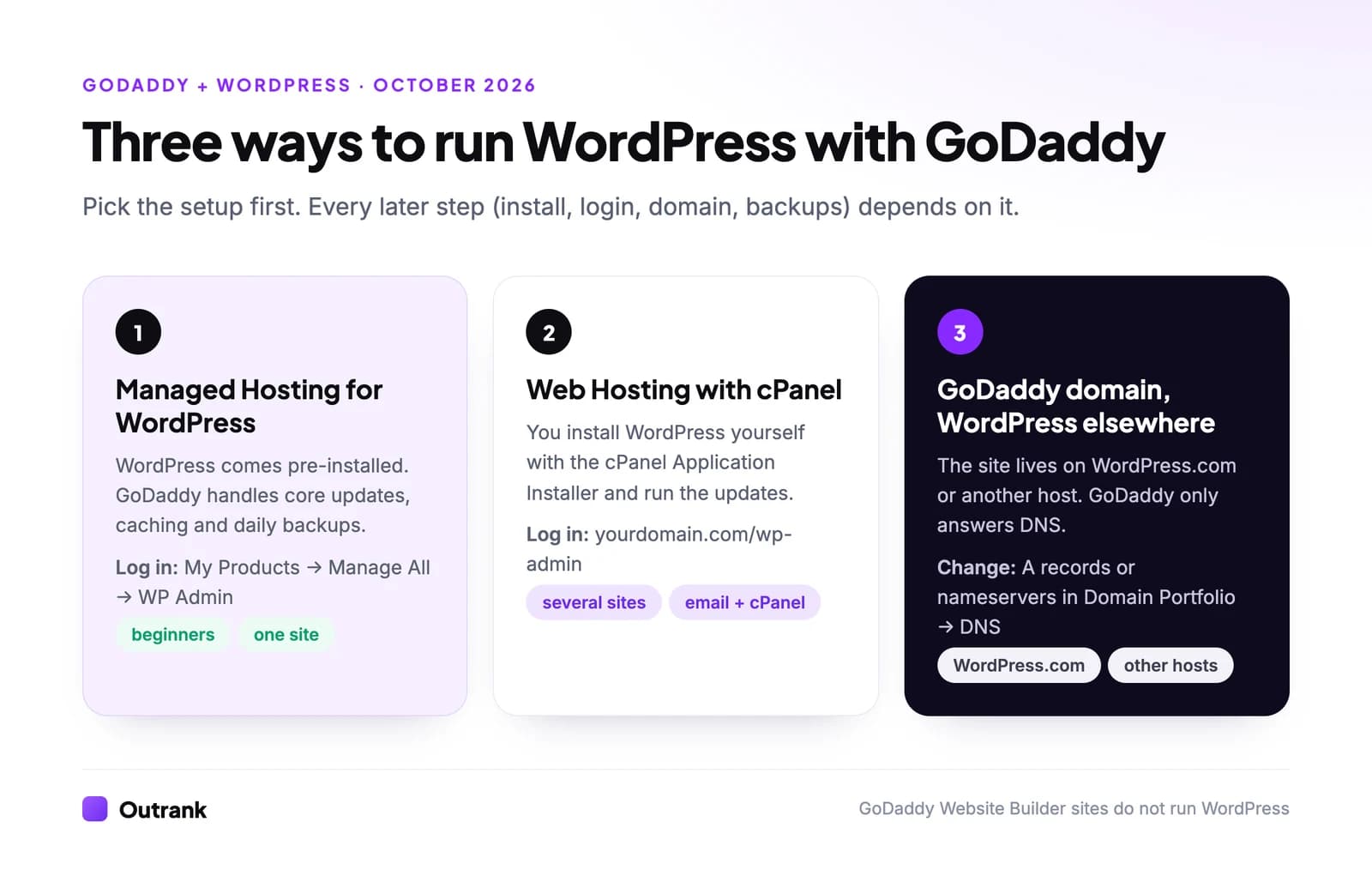
Every later step depends on which of these you have, so check your GoDaddy account under My Products before you follow any tutorial.
| Managed Hosting for WordPress | Web Hosting (cPanel) | GoDaddy domain only | |
|---|---|---|---|
| WordPress install | Pre-installed by GoDaddy | You run the cPanel installer | Handled by the other host |
| Core updates | Automatic, managed by GoDaddy | Your job (or the installer's auto-update setting) | The other host's job |
| Backups | Daily, 30 days kept, plus on-demand | Automatic daily backups listed on every plan | The other host's job |
| Sites per plan | 1, add up to 99 | 1 (Economy), 10 (Deluxe), 25 (Ultimate) | Not applicable |
| Plugin restrictions | Yes, a blocklist | No GoDaddy blocklist | Depends on the host |
| Best for | One business site or blog, beginners | Several small sites, people who want cPanel | WordPress.com users, other hosts |
Not sure? This four-question picker points you to one.
4-question decision helper
Which GoDaddy WordPress setup fits you?
Question 1 of 4
Where is your site today?
What GoDaddy WordPress hosting costs (October 2026)
Prices from GoDaddy's US WordPress hosting and web hosting pages on October 19, 2026. The low price applies to the first term only; the struck-through figure is the regular price GoDaddy displays next to it.
| Plan | First-term price | Regular price shown | Term for that price | Key limits |
|---|---|---|---|---|
| Hosting for WordPress Basic | $6.99/mo | $14.99/mo | First 1-year term | 1 site, 10 GB NVMe, no staging |
| Hosting for WordPress Deluxe | $10.99/mo | $19.99/mo | First 1-year term | 1 site, 20 GB, staging, CDN, SEO Optimizer |
| Hosting for WordPress Ultimate | $14.99/mo | $26.99/mo | First 1-year term | 1 site, 30 GB, staging, WooCommerce tools, priority support, Git, Object Cache Pro |
| Web Hosting Economy (cPanel) | $5.99/mo | $11.99/mo | First 3-year term | 1 site, 25 GB |
| Web Hosting Deluxe (cPanel) | $7.99/mo | $16.99/mo | First 3-year term | 10 sites, 50 GB |
| Web Hosting Ultimate (cPanel) | $12.99/mo | $21.99/mo | First 3-year term | 25 sites, 75 GB |
Every Managed WordPress plan lists a free SSL certificate, email, daily backups, malware scanning and removal, a web application firewall and automatic WordPress updates. GoDaddy also offers a 7-day free trial of Hosting for WordPress with no credit card. The discount covers the first term only, so budget for the regular price after that: from year two on an annual WordPress plan, or year four on a three-year cPanel term.
Set up WordPress on GoDaddy Managed Hosting
- 1
Buy a plan or start the free trial
Choose Basic, Deluxe or Ultimate on GoDaddy's WordPress hosting page. The setup wizard opens after checkout. - 2
Choose how to start
The wizard offers Start building a new site (chat with Airo for WordPress to generate a starter site, or pick your own theme and builder) or Move an existing site, which runs GoDaddy's migration tool. Sites coming from WordPress.com use a separate migration process. - 3
Build on the temporary domain
GoDaddy attaches a temporary domain so you can work before the site is public. Nothing you do here is visible on your real domain yet. - 4
Sign in to WordPress
Go to My Products, select Manage All next to Managed Hosting for WordPress, open the menu next to your site and choose WP Admin. Once the domain is connected,yourdomain.com/wp-adminworks too. - 5
Connect your domain
In Manage All, open the site's menu → Settings. Under Domains, select Add → New primary domain, choose the domain and select Continue. If the domain is in the same GoDaddy account, GoDaddy updates the DNS for you; otherwise point the domain's A record at the IP address GoDaddy shows. Allow up to 24 to 48 hours. - 6
Launch
Select Launch Site in the site's Overview, use Launch my site at the end of the Quick Start Guide in the WordPress dashboard, or click the Launch Now notice in the dashboard or editor.
Activating the integrated SSL certificate is step 3 of GoDaddy's setup guide. If it won't install, check the domain's DNS for CAA records; GoDaddy says you may need to delete them first.
Install WordPress on GoDaddy Web Hosting (cPanel)
If you bought a cPanel Web Hosting plan, WordPress isn't pre-installed. GoDaddy's own cPanel guide uses these steps:
- In your GoDaddy account, go to My Products, scroll to Web Hosting and select Manage next to the plan.
- Click cPanel Admin (top right).
- In cPanel's Software section, open the Application Installer. Depending on the plan it's Installatron or Softaculous.
- Search for WordPress and select Install This Application.
- Set the Location: pick the domain and leave the directory blank to install at the root (
yourdomain.com), not in a subfolder. - Choose the latest Version, turn on automatic updates if the installer offers them, then set an administrator username (not
admin), a strong password, your email and the site title. - Install, then sign in at
yourdomain.com/wp-admin.
On cPanel, updates and caching are your job. Keep the installer's auto-update on, and even though GoDaddy lists automatic daily backups on every Web Hosting plan, take your own backup before every plugin or theme update so you control the restore point.
Connect a GoDaddy domain to WordPress hosted elsewhere
You can keep the domain at GoDaddy and host WordPress anywhere. All DNS changes happen in GoDaddy's Domain Portfolio: select the domain, then DNS.
WordPress.com. In WordPress.com, open your site → Domains → Add domain name → Use a domain name I own → Connect your domain name to this site. WordPress.com then shows two IP addresses. In GoDaddy, replace the root (@) A records with those two IPs, add a CNAME for www pointing to your domain, delete any AAAA records, and leave MX records alone so email keeps working. Back in WordPress.com, click Verify Connection. The WordPress.com guide allows up to 72 hours, and connecting a domain requires a paid WordPress.com plan.
Any other host. Either edit the @ A record to the IP address your host gives you (DNS → Edit next to the record → Save), or switch nameservers under DNS → Nameservers → I'll use my own nameservers. Moving nameservers moves all DNS, including email records, to the new host, so copy your MX records over first. GoDaddy says most changes apply within an hour and can take up to 48.
The GoDaddy rules that trip people up
These apply to Managed Hosting for WordPress. Most old tutorials (including the earlier version of this page) recommend things GoDaddy won't let you run.
- Caching plugins are blocked. WP Super Cache, W3 Total Cache, WP Fastest Cache and several others are on GoDaddy's blocklisted plugins list because caching is built into the platform. If you install one, GoDaddy removes it.
- Most backup plugins are blocked too. BackupBuddy, BackWPup, Akeeba and others are listed because the plan keeps 30 days of backups. UpdraftPlus is blocked only in versions 1.23.2 and older.
- Stats and link checkers are out. On-site stats plugins such as WP-PostViews and Slimstat, and Broken Link Checker, are blocklisted for database load. Use Google Analytics or Search Console instead, and an external crawler for broken links.
- You can only edit some files. GoDaddy limits file editing to the
/wp-contentfolder,wp-config.php,.htaccess,favicon.icoand files you upload yourself. Themes, plugins and child themes all live in/wp-content, so this rarely blocks normal work. - Major WordPress versions arrive late on purpose. GoDaddy deploys major releases two to four weeks after the official release date (or once the first minor release is out), and minor releases about seven days after. WordPress 7.1 came out on August 19, 2026, for reference.
- Staging isn't on Basic. Deluxe and Ultimate get it: Manage All → Settings → Staging Site → Create.
Back up and restore
Backups run daily with nothing to switch on. Before a risky change, take one manually: Manage All → site menu → Settings → Backups → Backup Now, and give it a name. To restore, open Backups, pick a date in the calendar and choose files, database or both. GoDaddy's backup guide warns that restoring the database erases posts, comments and orders created after that date.
Your first hour inside WordPress
Whichever route you took, the WordPress side is identical. Do these before you write a single post:
- Settings → General: set the Site Title, Tagline and timezone.
- Settings → Permalinks: choose Post name so URLs read
yourdomain.com/sample-post/. - Settings → Reading: make sure Discourage search engines from indexing this site is unticked once you launch.
- Users → Profile: use a strong password, and give anyone else the lowest role they need (Editor or Author, not Administrator).
- Appearance → Themes: pick one theme and delete the ones you don't use.
- Add the site to Google Search Console and submit
yourdomain.com/wp-sitemap.xml, the sitemap WordPress generates automatically (how sitemaps work).
If WordPress itself is new to you, our honest take on how long WordPress takes to learn and the walkthrough on how to publish on WordPress cover the editor. For SEO basics that need no plugin, see adding keywords in WordPress without plugins.
Common GoDaddy WordPress problems and fixes
| Symptom | Likely cause | Fix |
|---|---|---|
| Pages return 404 but the home page works | Rewrite rules out of date | Open Settings → Permalinks and click Save Changes without changing anything |
| "Error establishing a database connection" | Wrong credentials in wp-config.php or a database problem | Follow GoDaddy's database connection fix, then contact support |
| Blank white screen after an update | A plugin or theme fatal error | Restore the last backup, or connect over SFTP and rename the plugin's folder in /wp-content/plugins |
| "Allowed memory size exhausted" | PHP memory limit | Raise it with GoDaddy's memory limit guide |
| Can't sign in to WP Admin right after a domain change | Domain switch still processing | Wait; GoDaddy notes sign-in is briefly unavailable while a domain changes |
| A plugin disappeared | It's on the blocklist | Check the blocklisted plugins page and use the built-in feature instead |
Is GoDaddy a good host for WordPress?
It's a sensible choice if you want domain, email and WordPress hosting on one bill with updates and backups handled for you, and the 7-day no-card trial lets you test the dashboard first. The trade-offs are real: the regular price is 1.7 to 2.1 times the first-term price on every plan above, the Basic plan has no staging site, and the plugin blocklist removes tools you may already rely on. If you need full server control or a specific caching stack, a cPanel plan or another host fits better.
The host matters less for rankings than what you publish. WordPress is the most common CMS among Outrank customers (1,195 WordPress sites published through Outrank in the 90 days to October 2026), and Outrank publishes to any of them, GoDaddy-hosted or not, through its WordPress plugin or the REST API. If you're still choosing a platform, our comparison of the best CMS for SEO covers the alternatives.
FAQ
Can I use WordPress with GoDaddy?
Yes, in three ways: GoDaddy's Managed Hosting for WordPress (WordPress pre-installed and managed), GoDaddy Web Hosting with cPanel (you install WordPress with the Application Installer), or a GoDaddy domain pointed at WordPress hosted elsewhere. GoDaddy's Website Builder is a separate product that doesn't use WordPress.
How do I log in to my WordPress site on GoDaddy?
On Managed Hosting for WordPress, go to My Products, select Manage All next to Managed Hosting for WordPress, open your site's menu and choose WP Admin. On any setup, you can also go straight to yourdomain.com/wp-admin once the domain is connected.
How much does WordPress cost on GoDaddy?
On October 19, 2026, GoDaddy listed Managed Hosting for WordPress at $6.99, $10.99 and $14.99 a month for the first year on an annual term, with regular prices of $14.99, $19.99 and $26.99. cPanel Web Hosting started at $5.99 a month on a three-year term. WordPress itself is free.
Can I connect my GoDaddy domain to WordPress.com?
Yes. Add the domain in WordPress.com under Domains → Use a domain name I own, then in GoDaddy's DNS settings replace the root A records with the two IP addresses WordPress.com gives you and add a www CNAME. It needs a paid WordPress.com plan and can take up to 72 hours to verify.
Why can't I install a caching or backup plugin on GoDaddy?
GoDaddy's Managed Hosting for WordPress has caching and 30 days of daily backups built in, so it blocklists plugins that duplicate them, such as WP Super Cache, W3 Total Cache and BackupBuddy. If one is installed, GoDaddy removes it. cPanel Web Hosting doesn't have this blocklist.
Does GoDaddy update WordPress automatically?
On Managed Hosting for WordPress, yes. Minor security releases are typically deployed about seven days after release and major versions within two to four weeks. On cPanel hosting, updates depend on the settings you chose in the installer and in WordPress.